Attention
Qubes OS 4.2 has reached end of life - it is no longer supported and thus will no longer receive security updates, bug fixes, or new features. We recommend to perform an in-place upgrade or perform a clean installation of Qubes 4.3! The documentation of version 4.2 will also not receive any new updates, unless bug fixes. Its state is thus archived.
How to use disposables
A disposable is a stateless qube, it does not save data for the next boot. These qubes can serve various uses cases that require a pristine environment:
View untrusted files without other trusted files on the same system;
Visit untrusted websites in a web browser without authentication cookies from previous session;
Sanitize untrusted PDFs or images and retrieve a safe-to-view image;
Connect untrusted devices without other trusted devices or files on the same system;
Fresh environment for build systems (for technical users).
Disposables can be launched either directly from GUI domain’s app menu or terminal window, or from within app qubes. Disposables are generated with names like disp1234, where 1234 is a random number. Below is an example of disposable workflow benefits:
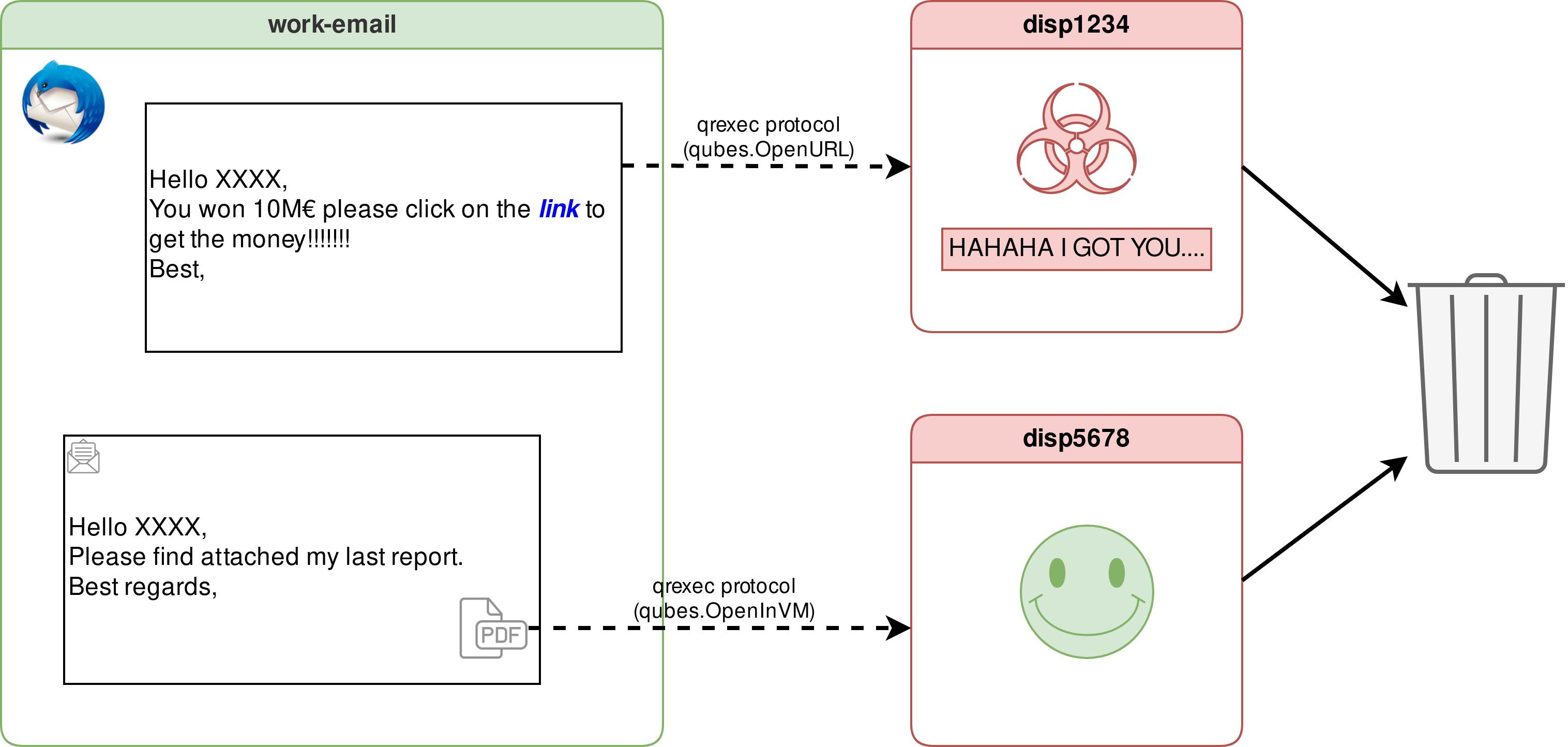
Example of how disposables can be used to safely open untrusted links and attachments in disposables
In the work-email qube, the user clicks on a link. This link is opened in a new disposable through the qrexec protocol (qubes.OpenURL). The link contains some kind of malware that infects the disposable qube, but it is harmless for the work-email qube, as the links was opened in a separate environment from the mail client, the mail box is safe. The disposable is later destroyed.
In that same work-email qube, the user now opens a PDF attachment. Using the qrexec protocol (qubes.OpenInVM), the PDF is opened as in a new disposable qube, this time, the file looks clean, but as we can never be sure, the user prefers to default to open files in disposables. The disposable is later destroyed.
This diagram provides a general example of how disposables can be used to safely open untrusted links and attachments in disposables. You may find more on why one would want to use a disposable on the first disposable qube article. Please note that the blog post is dated and some of the information it presents are not accurate anymore.
Disposable types
Disposable template
Disposable template is not a disposable in itself, but a special template that can create different disposable types: normal disposables and named disposables. If you need to have a persistent changes in disposable files (e.g. configuration files), do them in the disposable template. If you need certain programs to be available in the disposable, you can install them in the disposable template’s own template. By default, Qubes OS creates the default-dvm disposable template. It will be used it as an example on this page. You can create as many disposable templates as you’d prefer. Disposable customization is outside of the scope of this page.
Named disposable
Named disposables are built upon disposable templates, but they have a fixed name. The named disposable seems to behave like an ordinary app qube, it doesn’t shutdown when you close the initial application, every application you open will start in the same qube, and you need to manually shut it down. However, when it is shutdown, any changes you made in the named disposable will be lost.
If you have selected during installation to use disposable service qubes, your sys-net, sys-usb and sys-firewall are examples of named disposables based on the default-dvm disposable template.
How to create disposables
How to launch new disposables based on existing template
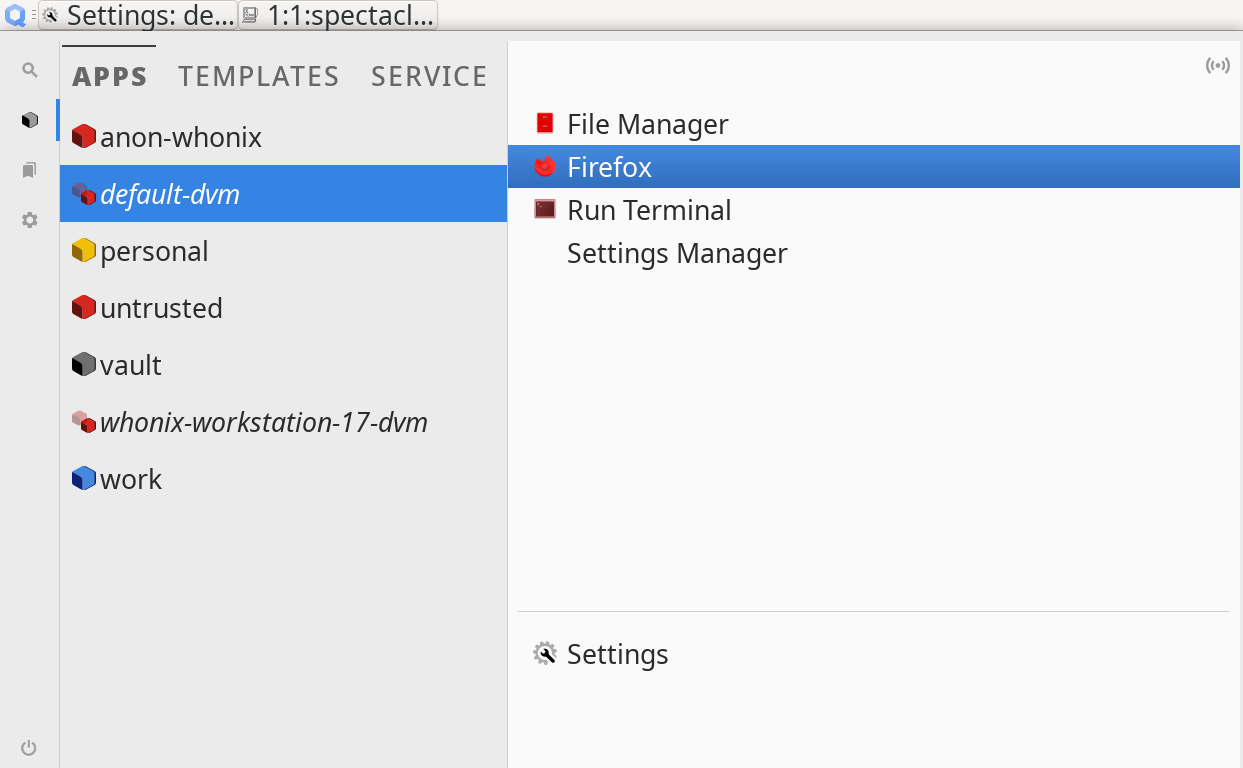
Disposables can be started with  . Select the application you wish to launch in a new disposable, and one will be created for you. Notice that the application was not opened in the disposable template
 default-dvm: instead, it opens in a disp1234 qube. This is because applications from a disposable template listed in the APPS tab will open in a new disposable.
After the qube is created, you can access it via other tools using its disp1234 name, for example in Qubes Domains widget, Qubes Manager, , qvm-copy, qvm-ls etc.
How to create named disposables
Named disposables can be created with , choose a name, configure according to your needs and click on Create.
If you create the qube with the name test-disp, you can open applications on it using and selecting the application you wish to open in the named disposable.
In action
Open an application in a disposable (from GUI domain)
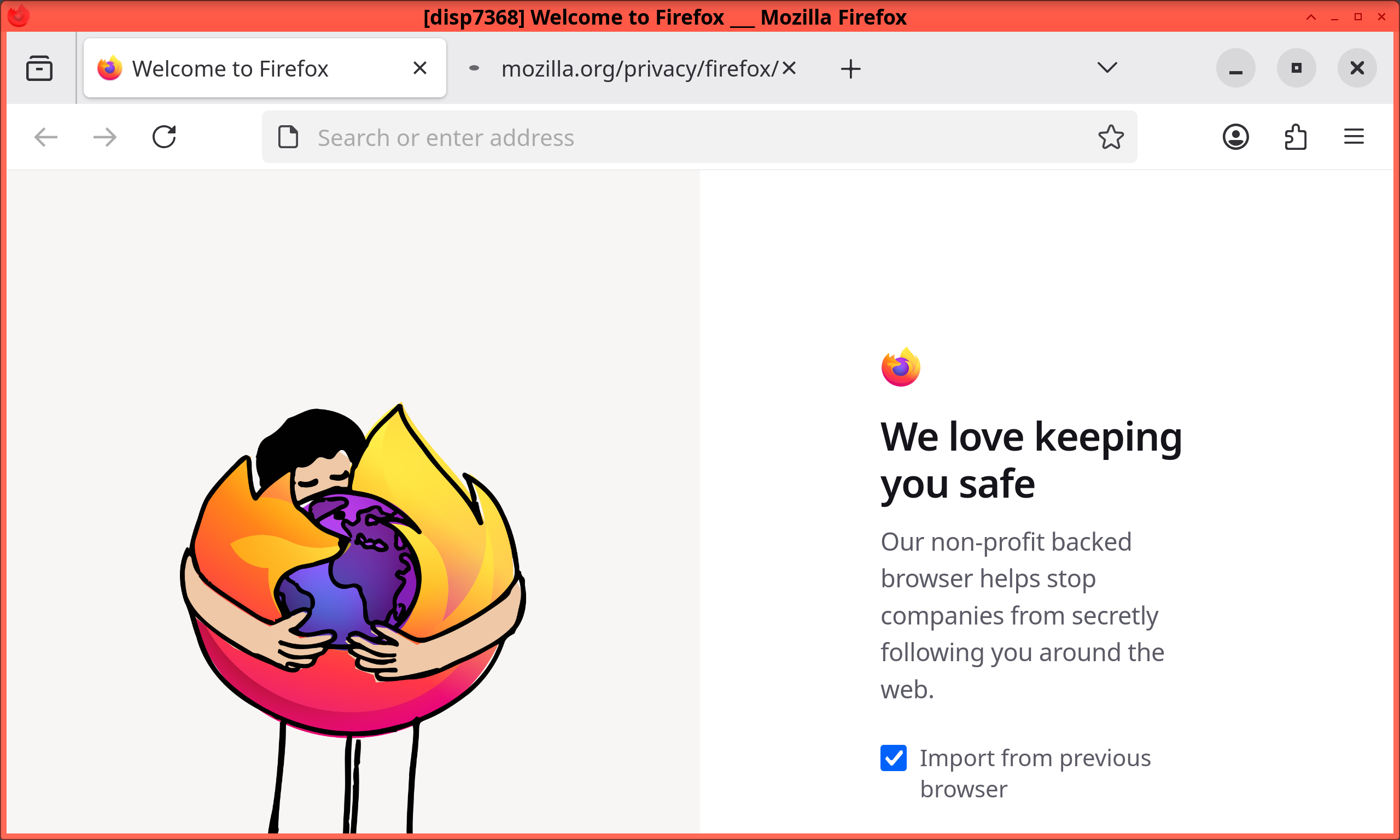
Sometimes it is desirable to open an instance of Firefox in a new fresh disposable. This can be done easily using the app menu: just go to . Wait a few seconds until the web browser starts.
It is possible to do the same as above using the command line:
user@dom0:~$ qvm-run --dispvm=default-dvm --service -- qubes.StartApp+firefox
The browser is opened from a disposable based on the default-dvm qube.
Open a file in a disposable (from app qube)
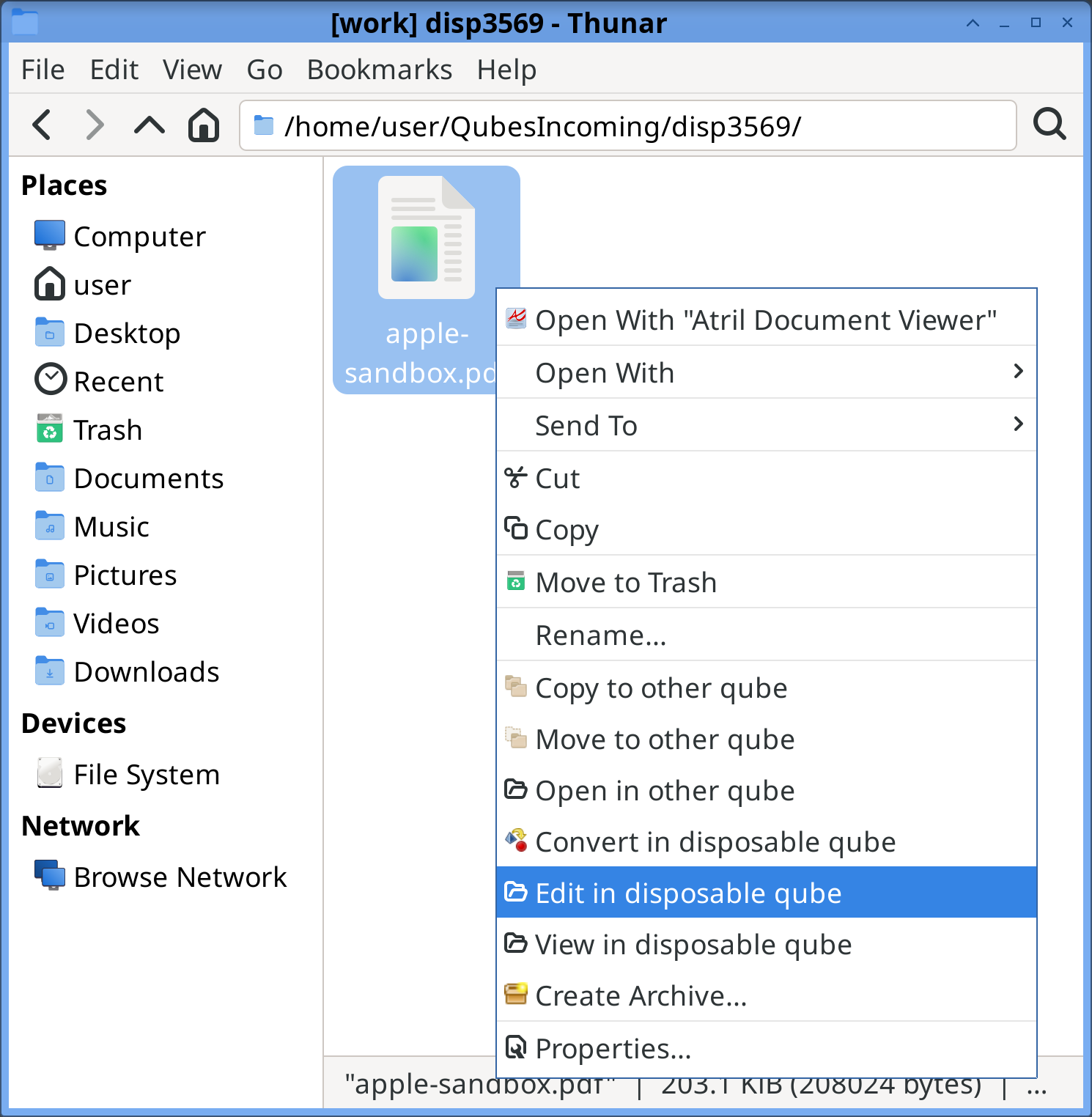
In an app qube’s file manager, right click on the file you wish to open in a disposable, then choose Edit/View in disposable qube. Wait a few seconds and the default application for this file type should appear displaying the file content. This app is running in its own dedicated qube, a disposable created for the purpose of viewing or editing this very file. If you have edited the file and saved the changes, the changed file will be saved back to the original app qube, overwriting the original.
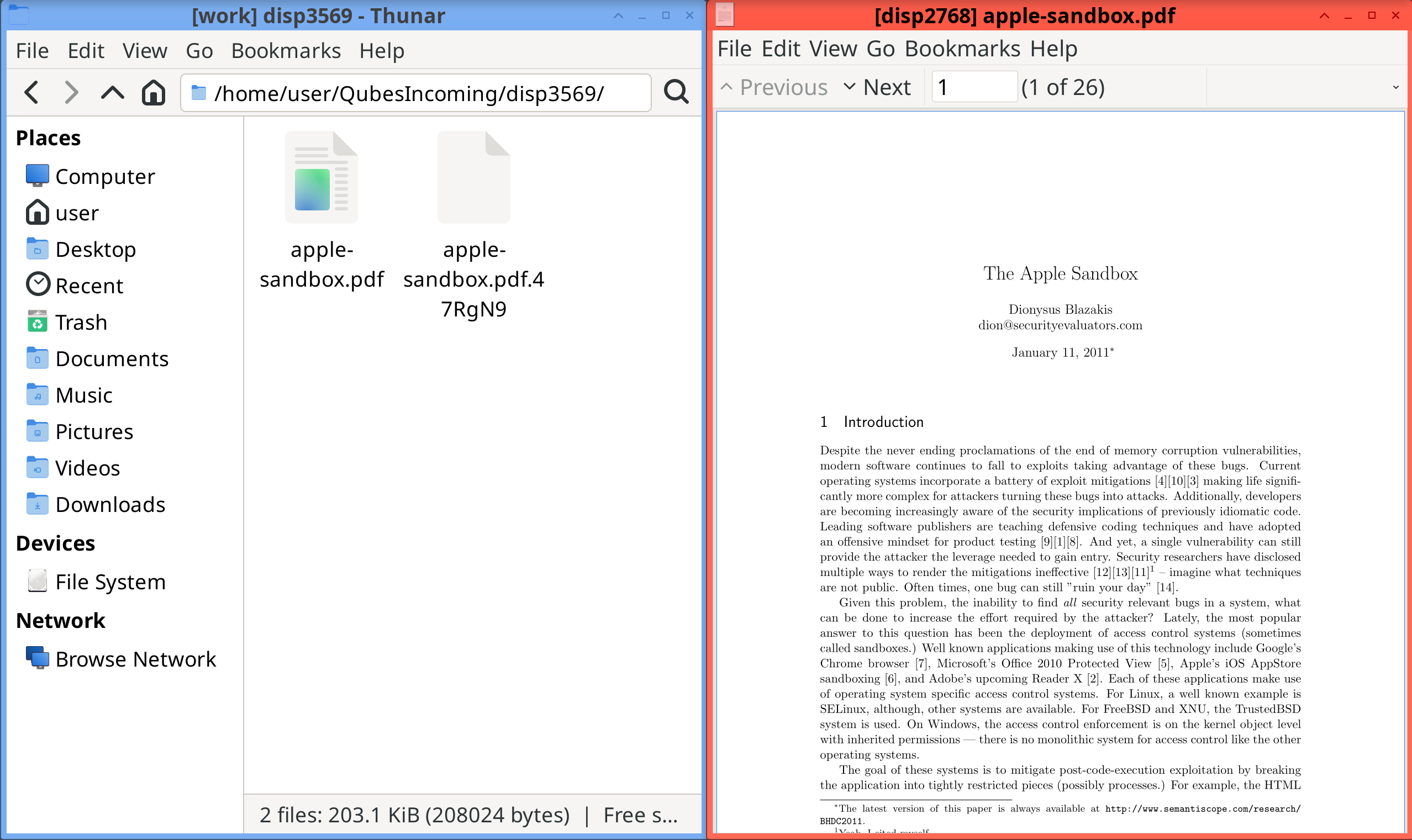
It is also possible to do the same from the command line using qvm-open-in-dvm:
[user@work ~]$ qvm-open-in-dvm -- 'apple-sandbox.pdf'
[user@work ~]$ qvm-open-in-dvm --view-only -- 'apple-sandbox.pdf'
The PDF viewer is opened in a disposable based on the work qube default disposable template.
Sanitize a file in a disposable (from app qube)
There is a nice security property in the system that allows transforming untrusted files into trusted files, this process is called sanitization. A sanitized file, presumably, leaves no room to malicious code, therefore, you can safely open the sanitized file in the qube itself (doesn’t need to view in disposable anymore), in a viewer outside of Qubes OS, or send the sanitized file to someone that doesn’t use Qubes OS and can’t make the conversion themselves without compromising them..
Only supported file types for conversions are images and PDFs. The untrusted files will be converted to RGBA bitmap. On conversion, the original untrusted files will be moved to ~/QubesUntrustedPDFs or image.png-untrusted (location depends on the file type) while the sanitized file will be created with the same location and name by reconstructing the received data. As the output is an image, the sanitized files are a bit bigger, searching strings without OCR will not be possible anymore.
If you’d like to sanitize a file, in an app qube’s file manager, right click on the file (image or PDF) you wish to sanitize in a disposable, then choose Convert in disposable qube. Wait a few seconds for the conversion. This conversion runs on its own dedicated qube, a disposable created for the sole purpose of sanitizing this very file.
It is also possible to do the same on the command line using qvm-convert-img and qvm-convert-pdf.
Connect a device to an disposable (from GUI domain)
Sometimes you have a device which you don’t trust, therefore you decide to leverage disposables for the task. To attach a device to a disposable, go to .
Note
No application will launch by default and the disposable will continue running, that is expected, no application request was made. Also notice that opening and closing the first (or any other) application opened in the disposable will not turn it off, this is also expected, you must shutdown disposables created by the Qubes Devices widget manually.
The same can be done from the command line, although more difficult:
user@dom0:~$ disp_template="default-dvm"
user@dom0:~$ disp="$(python3 -c "import qubesadmin; \
    app = qubesadmin.Qubes(); \
    appvm = app.domains['$disp_template']; \
    disp = qubesadmin.vm.DispVM.from_appvm(qubesadmin.Qubes(), appvm); \
    disp.start(); \
    print(disp.name)
")"
user@dom0:~$ qvm-device <DEVICE_CLASS> attach <ATTACH_OPTIONS> -- "$disp" <BACKEND:DEVICE_ID>
user@dom0:~$ # Do your tasks.
user@dom0:~$ qvm-device <DEVICE_CLASS> detach <ATTACH_OPTIONS> -- "$disp"
user@dom0:~$ qvm-kill -- "$disp"
Call to the application succeeds but disposable exits too soon
When the main process of the initial application used to start the disposable exits, the disposable is removed. Some applications, such as GNOME Terminal (show on the app menu as Terminal, do not wait for the application to close before the main process exits.
These cases requires wrappers to keep the application running. Qubes provides a wrapper for this particular case, qubes-run-gnome-terminal, which will be used automatically by qubes-run-terminal or application Run Terminal if GNOME Terminal happens to be the preferred terminal for the disposable template